


The StoreRobo Import Export App for Shopify can map the columns in your product import file to the matching Shopify product fields using AI. Instead of mapping each column manually, you can generate the mappings with a single click, review the suggestions, correct them where needed, and then run the import.
AI-assisted mapping works with all supported import sources — Local, URL, FTP/SFTP server, and WooCommerce API.
AI-assisted column mapping is available for product imports on the Pro and Enterprise plans, and appears whenever the Custom template is the active template for that import.
In this guide, you’ll learn how to:
- Upload a product import file and open the custom mapping screen.
- Map the product columns automatically using AI.
- Review confidence levels and correct the suggested mappings.
- Re-run or reset the mappings before importing.
Step 1: Choose the product import file
- From your Shopify admin dashboard, go to Apps > StoreRobo > Home.
- Navigate to the Import section.
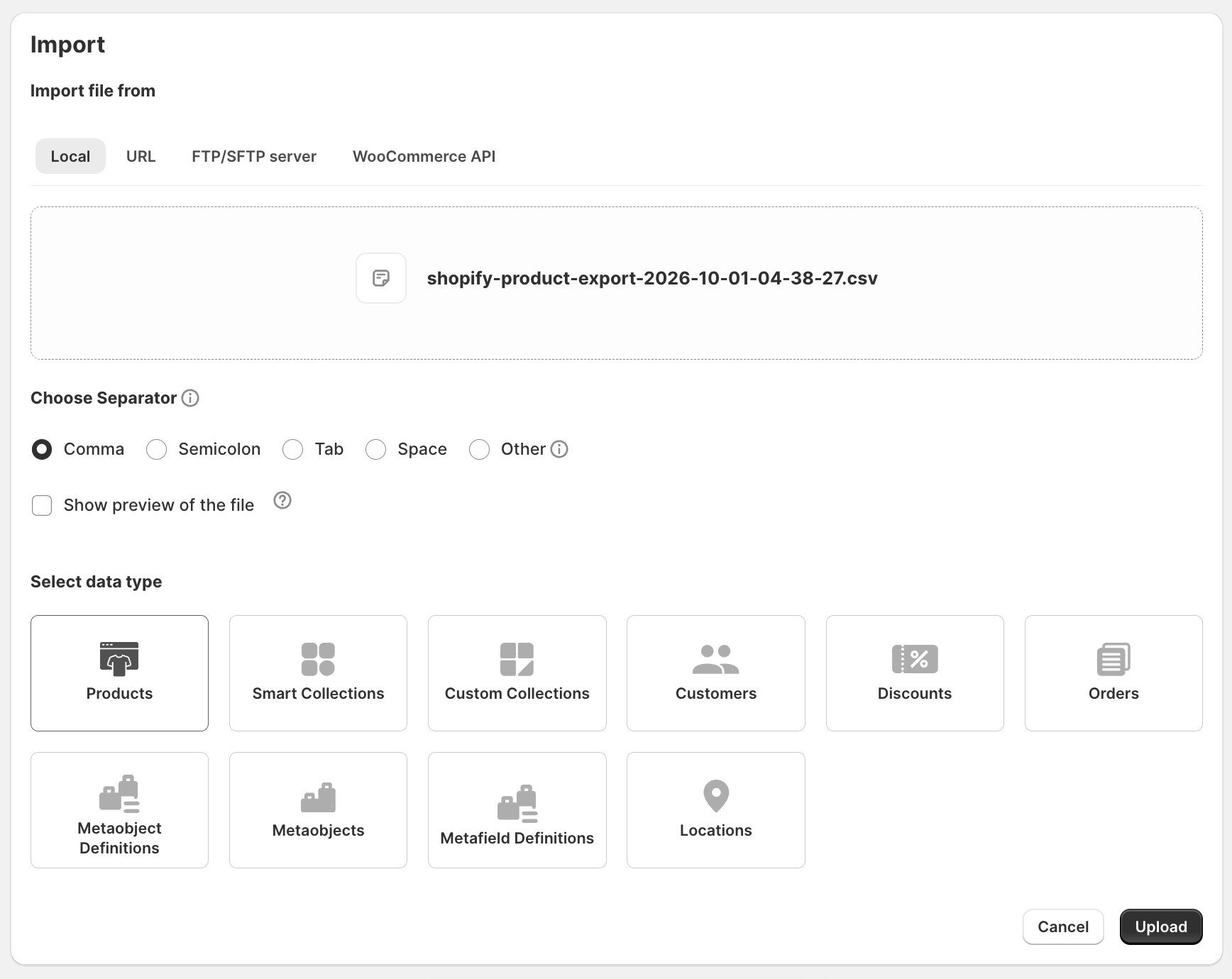
- Under Import file from, choose the required import source:
- Local
- URL
- FTP/SFTP server
- WooCommerce API
- Upload or select the product import file.
- Under Choose Separator, select the separator used in your file. The default is Comma. To check the file contents before importing, select Show preview of the file.
- Under Select data type, select Products.
- Click Upload.
Step 2: Open the column mapping screen
Under Import template, select the template as Custom.
A mapping screen will appear as shown. Here, you can map the columns based on:
- General
- Image
- Variant
- Inventory
For successful import, ensure the Title field is mapped.
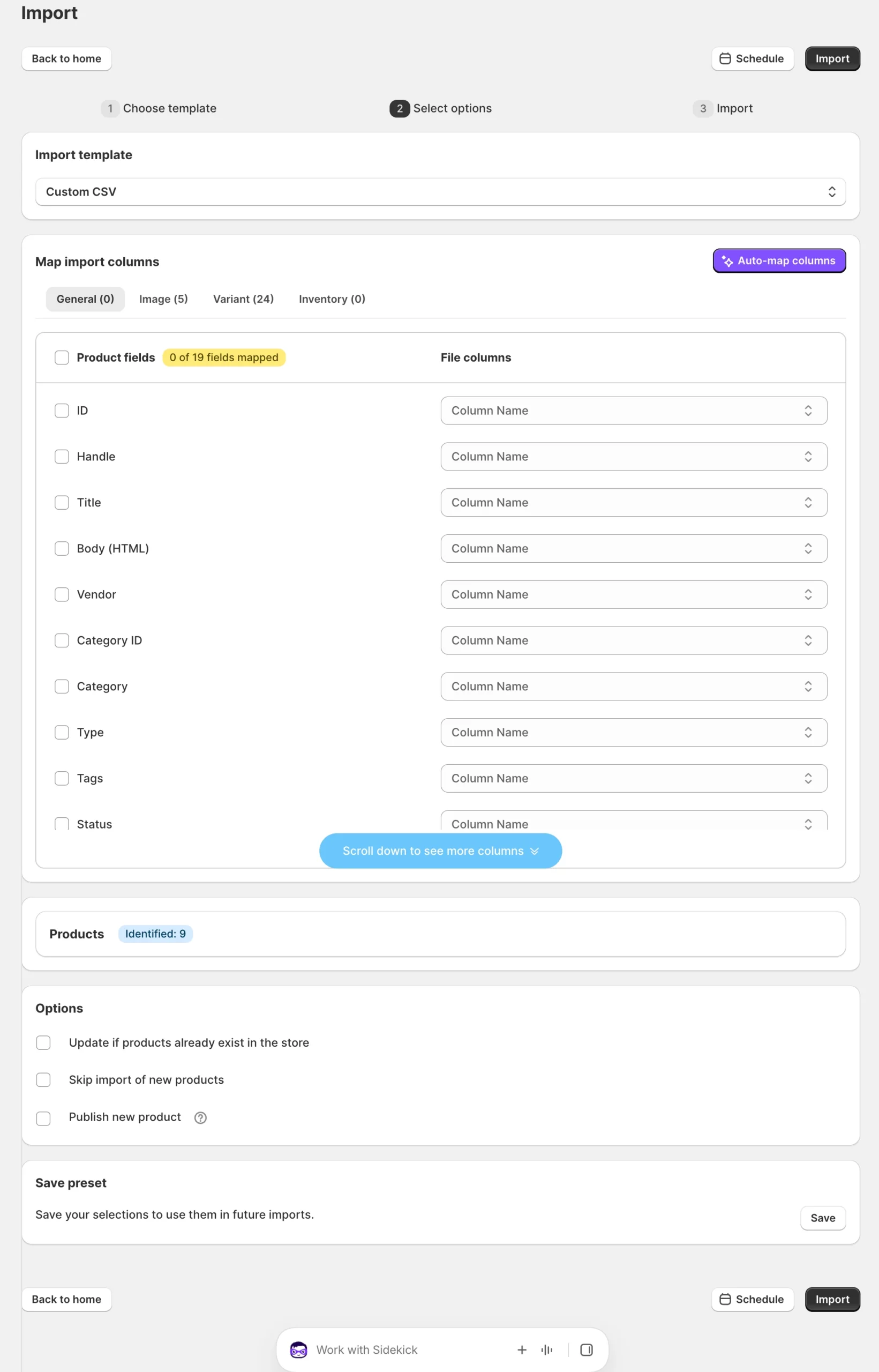
To map the fields automatically, click Auto-map columns.
Step 3: Review the AI-mapped columns
StoreRobo analyzes the columns in your file and suggests the corresponding Shopify product fields, along with a confidence score for each suggestion.
| Confidence score | Result |
|---|---|
| 80 and above | Mapped automatically and marked High confidence |
| 60–79 | Mapped automatically and marked Low confidence |
| Below 60 | Left unmapped for manual review |
The summary at the top of the mapping screen shows the total number of columns mapped by AI, along with the number of High confidence and Low confidence mappings.
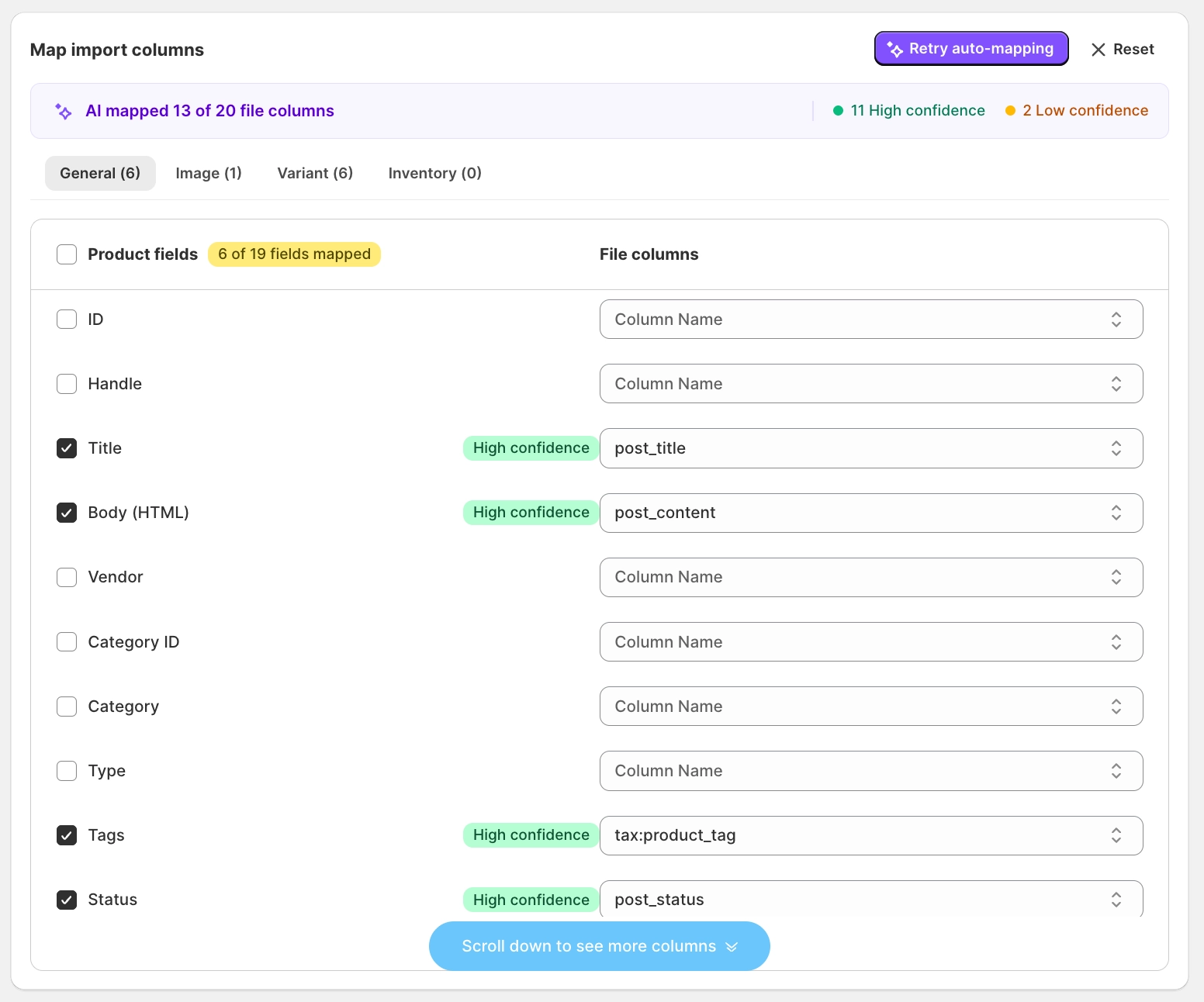
Review the suggested mappings
AI-generated mappings are suggestions. Review them before running the import.
To change a mapping:
- Locate the required Shopify product field.
- Open the corresponding File columns dropdown.
- Select the correct column from the import file.
When you manually change an AI-generated mapping, StoreRobo treats the updated selection as a manual mapping and removes its confidence label.
Re-run AI mapping
To generate the mappings again, click Retry auto-mapping.
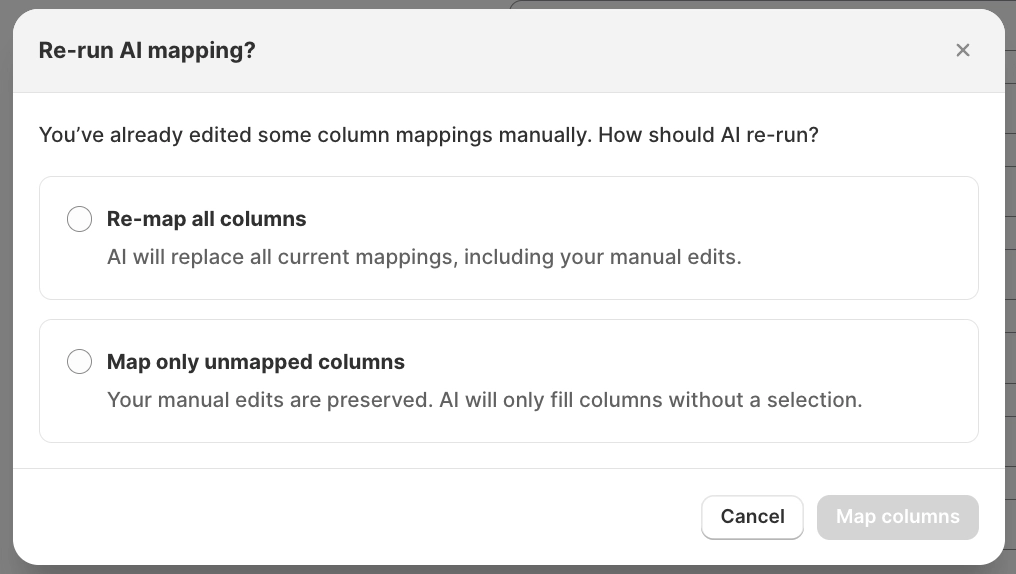
If you have already edited some mappings manually, the Re-run AI mapping window appears with two options:
- Re-map all columns — AI replaces all current mappings, including your manual edits.
- Map only unmapped columns — your manual edits are preserved, and AI fills only the columns without a selection.
Select the required option and click Map columns. To close the window without re-running, click Cancel.
There is no usage limit for AI-assisted mapping on eligible plans.
Reset the mappings
To discard the current mappings and start again, click Reset. This clears both AI-generated and manually edited mappings and restores the mapping screen to its default unmapped state.

Step 4: Complete the product import
Once you have reviewed and finalized the column mappings:
- Configure the required product import Options.
- Click Import to import the products. Alternatively, to schedule the import, click Schedule.
StoreRobo uses the finalized mappings shown on the screen when processing the import. The AI only assists with mapping the fields; it does not start or complete an import on its own.
You can also save the finalized mapping as a preset and reuse it for future imports from the same source. For more details, refer to Simplify Data Management with Shopify Import/Export Presets.
How AI mapping handles different file structures
- Non-English column headers: StoreRobo uses translation-based and semantic matching to identify the corresponding Shopify field.
- Columns with a header but empty sample values: AI suggests a mapping based on the column header.
- Empty column headers: Columns without a header are excluded from mapping.
- Duplicate column headers: Duplicate columns are not mapped automatically and must be reviewed and mapped manually.
- AI mapping unavailable: If automatic mapping cannot be completed, you can continue using the regular manual column mapping process.
Note: AI-assisted field mapping is currently available only for product imports. It does not apply to other StoreRobo data types such as orders, customers, collections, or metafields.
