


You can import product data to Shopify using FTP/SFTP with the StoreRobo Import Export Suite by first setting up an FTP profile in the app, then uploading your product import file to that server, and running the import from the FTP/SFTP location. This lets you automate imports directly from your FTP server without manual file uploads.
In this guide, you’ll learn how to configure your FTP profile and complete the import step by step.
Step 1: Create an FTP/SFTP Profile
- From the Shopify admin dashboard, go to Apps > StoreRobo > Home.
- Under Import Products, select FTP/SFTP server.
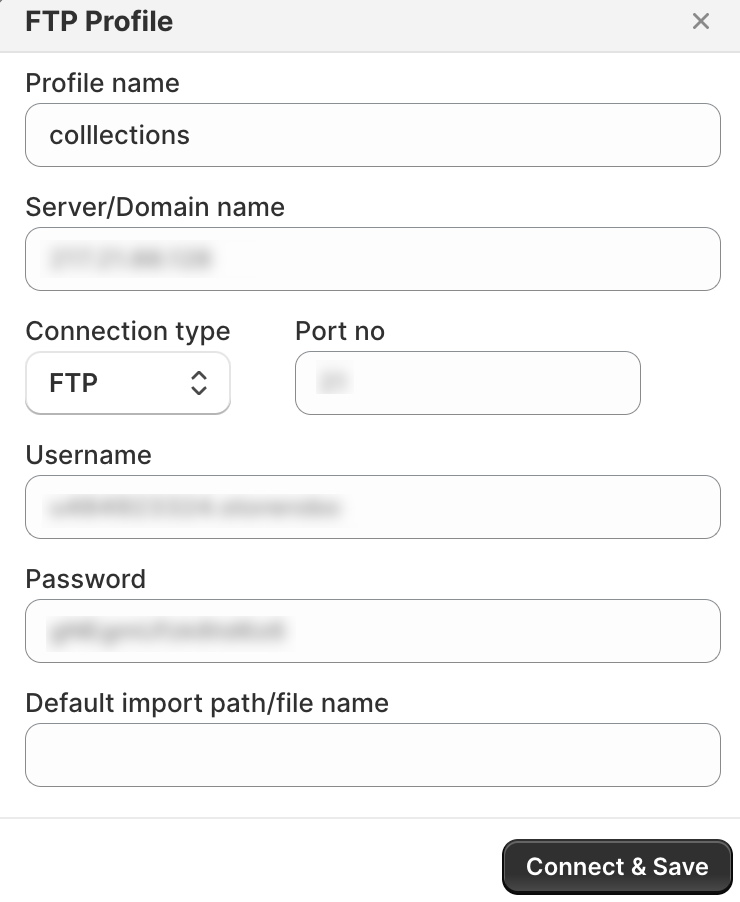
- Click Add Profile.

- Enter the profile name and server name.
- Choose the connection type (FTP or SFTP) and specify the port number.
- Enter the FTP username and password.
- Specify the default import path.
- Click Connect and Save.
Step 2: Import Products Using the FTP/SFTP Profile
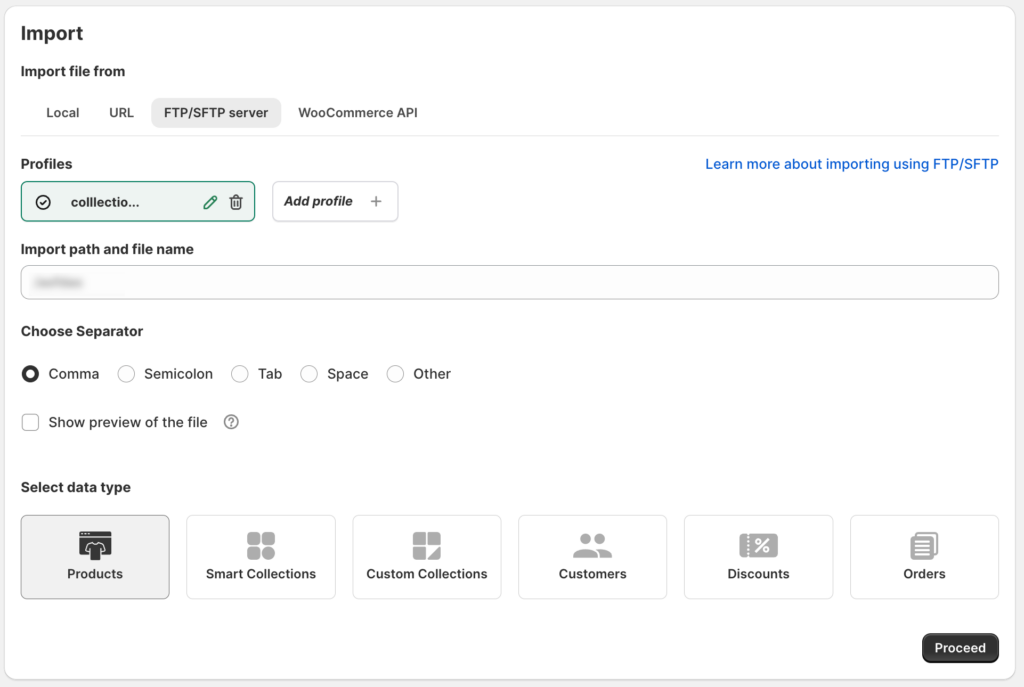
- Go to Apps > StoreRobo > Home.
- Under Import Products, select FTP/SFTP server.
- Select the import path and file name.
- Choose the correct separator for your CSV file. It’s important to ensure that the correct delimiter is selected, and you can verify this by using the preview feature.
>> Uncovering Delimiters: Crucial Data Organization Techniques
- Click Proceed.
- Configure the import options and filters as required.
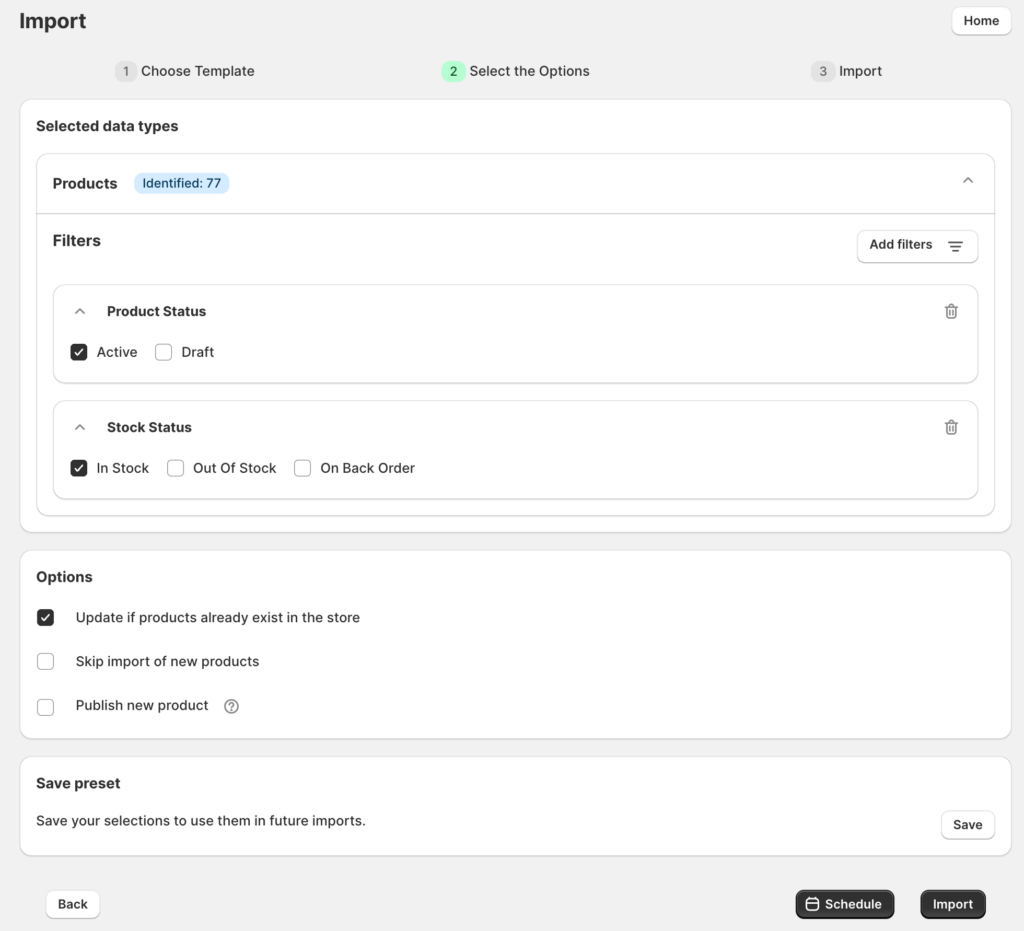
- Click on Import to finish.
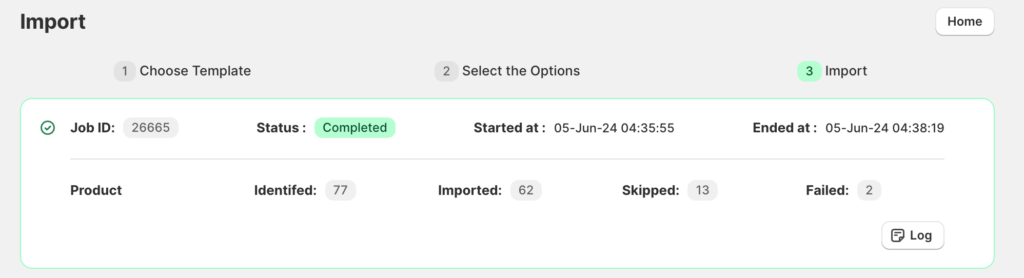
On successful completion of the import process, the user will be notified via email. The newly imported products will be listed in the Products page.

Comments (3)
eric poot
May 6, 2025
Hi,
i would like to know if you can also map fields in the app when you are importing stock update files from ftp?
I can not edit these files to a shopify standard before importing.
I would need to map these fields in app.
Eric
Jo
December 25, 2025
I would love to know if you ever found a solution. I’m currently dealing with integration issues from a warehouse supplier’s API. The labor involved for 30k lines of product data to convert to Shopify compatible format is insane.
Yuval
December 31, 2025
Hi there,
Yes, this is possible. Field mapping can be handled within the app when importing stock update files from FTP. For help setting this up or exploring workarounds, please reach out to our support team.