


An excellent first impression can turn casual visitors into loyal customers. With the WebToffee Marketing Automation App, you can set up a complete welcome funnel that greets visitors, collects their emails, and follows up with an engaging welcome email. In this guide, we’ll walk you through building a high-converting welcome campaign using three tools: a pop-up form, an embedded form, and an automated welcome email.
How These Steps Work Together
- Popup Campaign captures emails from new visitors through a timed or instantly displayed pop-up.
- Embedded Form offers a static option on your site for ongoing email collection.
- Automation Workflow sends a personalized welcome email with a discount to every new signup.
Together, these tools help you collect emails and engage customers automatically.
Step 1: Create a Welcome Popup
Use a pop-up to greet first-time visitors and collect their emails instantly.
Quick Steps:
- Go to Web campaigns > Create New Campaign > Welcome campaigns.
- Select a Welcome campaign template.
- In settings:
- Display frequency: Set to “Once per visitor”.
- Trigger: Leave it unchecked (shows immediately) or set a short delay (e.g., 5s).
- Audience: Select New visitors only.
- Visibility: Select ‘All devices’ for maximum reach.
- Customize the popup content with:
- A clear headline (e.g., “Get 10% off your first order!”)
- Email input block and CTA button
- Configure the success screen to show the coupon after submission.
- Click Publish.
👉 Detailed article: Set Up a Welcome Popup Campaign


Step 2: Add an Embedded Signup Form (Optional)
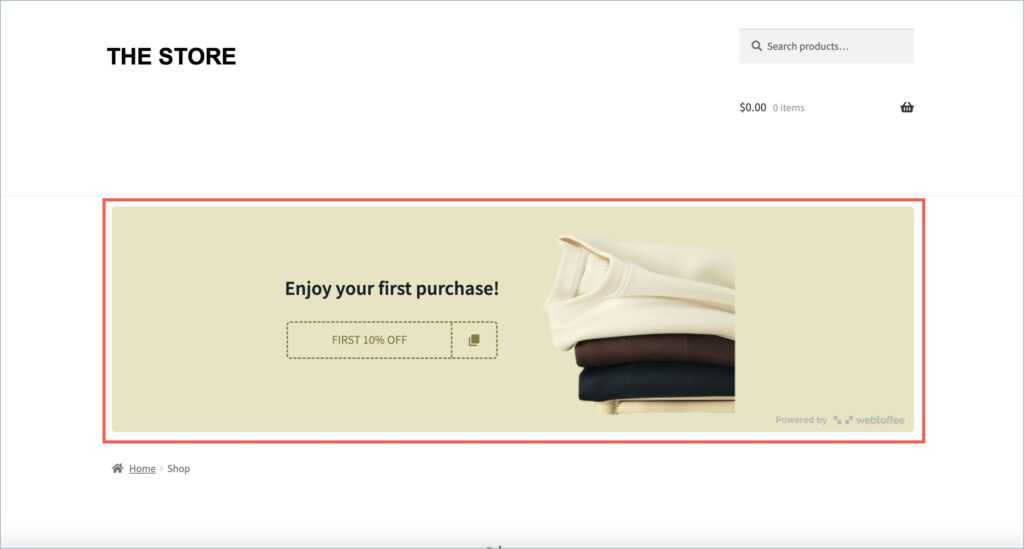
Want to offer an alternative signup method apart from popups? Add an embedded form to your homepage, footer, or landing pages.
Quick Steps:
- Go to Web Campaigns > Create new campaign > Embed forms tab.
- Select a prebuilt welcome form template.
- Configure the form settings.
- Click Edit template to customize the design, text, and fields.
- Go to the Success page and add a Coupon block. Choose or create a coupon.
- Click “Finish editing” and then “Publish” to generate the embed code.
- Paste the code into a Custom HTML block on any page or widget area in your store.
👉 Detailed article: Create and Add Embedded Forms to WooCommerce Stores

Step 3: Automate Your Welcome Email
Automatically send a welcome email with a discount the moment someone subscribes.
Quick Steps:
- Go to Automations from your dashboard.
- Select the “Welcome Email Automation” (prebuilt).
- In settings:
- Trigger: Customer sign-up
- Select campaign: Choose the popup/form used in Step 1/2
- Enable “Skip contacts who have been in this workflow.” → set to last 30 days
- Use Trigger Filters if needed (e.g., page URL, user type)
- Click the Email block to:
- Add your subject line and greeting
- Edit the email content
- Insert a discount coupon block
- Add a clear CTA (e.g., “Shop Now”)
- Click Finish Editing → Name your automation → Click Publish
👉 Detailed article: Create a Welcome Email Workflow
Test the Flow
Open your site in incognito mode, then:
- Sign up using the pop-up or embedded form.
- You should see the success screen with the coupon.
- The welcome email should land in your inbox shortly after.
