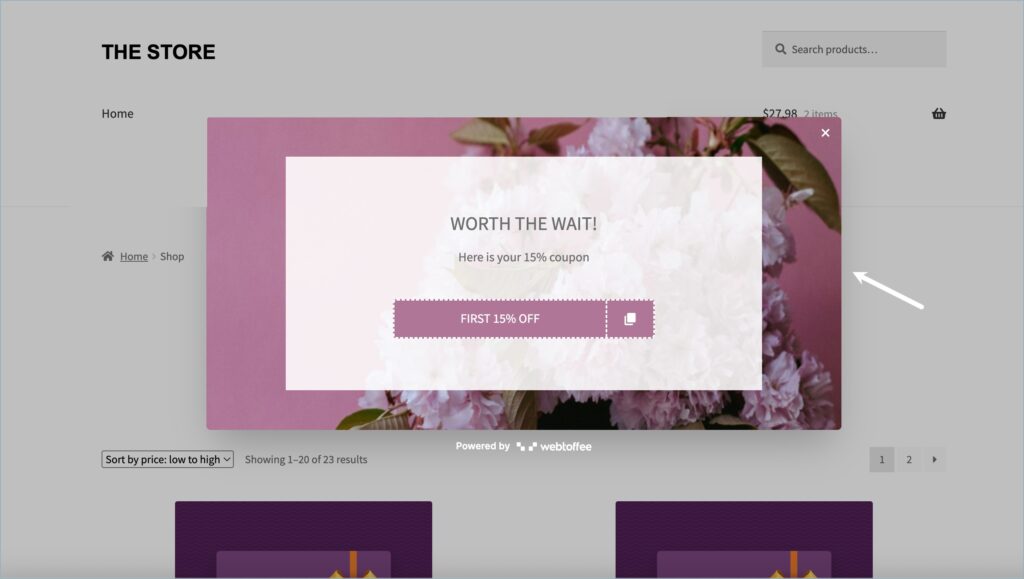
The WebToffee eCommerce Marketing Automation app allows you to recover lost sales by displaying targeted popups to shoppers who abandon their carts. By using ‘Exit Intent’ technology, the app detects when a user is about to leave your store and triggers a special offer or discount to encourage them to complete their purchase. To get started, navigate to Forms and Widgets > Popup and embed forms in the web app, and select a Cart Recovery campaign template, enable the ‘Exit Intent’ trigger to catch users before they leave, and set a ‘Cart Value Condition’ to target specific shoppers. Finally, customize your offer with a discount coupon, then click ‘Publish’ to start automatically recovering abandoned carts.
Goal of This Campaign
You’re about to create a pop-up that:
- Detects when a visitor with cart activity tries to leave.
- Offers them a discount (like 15%) to recover the sale.
- Targets only relevant users, eliminating unnecessary pop-ups.
- From the Marketing sidebar, go to Forms and Widgets > Popup and embed forms.
- Click “Create New Campaign.”

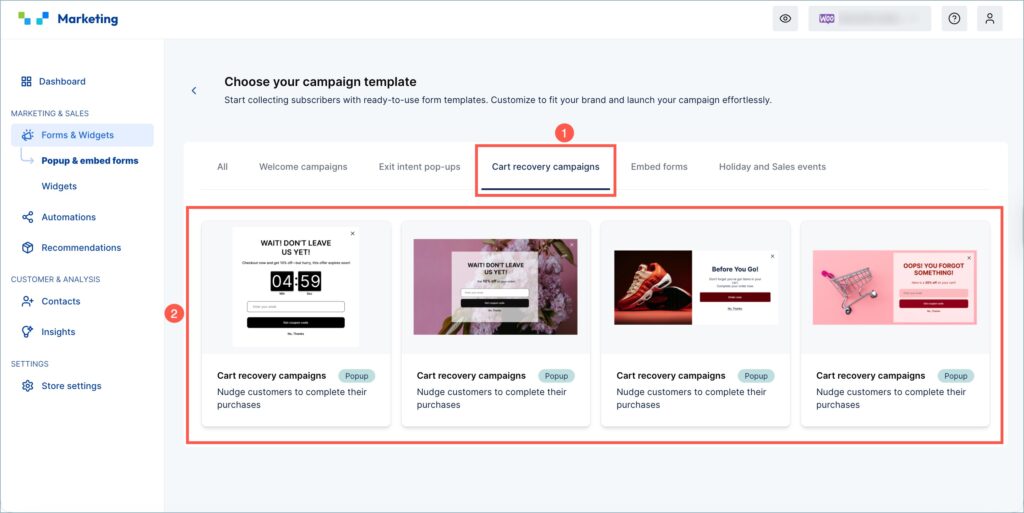
Step 2: Choose a Cart Recovery Campaign Template
- In the template gallery, select the Cart recovery campaigns tab.
- Select a template that aligns with your brand’s style and messaging. For example, you can pick designs that highlight urgency or offer a discount, like: “Wait! Grab 15% off before you go.”
Step 3: Configure Cart Recovery Campaign Settings
After selecting a template, you’ll land on the campaign settings screen. Here’s how to optimize your configuration specifically for abandoned cart recovery:
A. Trigger (When the pop-up should appear)
- Enable “On exit intent.”
- This is crucial for cart recovery, as it allows you to catch users right as they’re about to leave the site. Exit intent works best on desktop browsers.
Tip: Avoid immediate or time-based triggers for cart recovery. Exit intent is the most behavior-sensitive option here.
B. Display Frequency
- Set to “Once per hour”
- This ensures you’re not bombarding visitors with the same pop-up while still reminding them during active sessions.
Step 4: Add Smart Targeting Rules
Your aim here is to display the pop-up only to visitors who are most likely to abandon their purchase.
A. Audience
- Select All visitors, so that even returning visitors with items in the cart can be targeted.
Unlike welcome popups (which focus on new users), cart recovery applies to anyone showing cart intent.
B. UTM Parameters (Optional)
This is handy if you’re running retargeting ads or email campaigns. The pop-up will only show when the UTM parameter matches.
Example: Show only for visitors coming from a Facebook ad with utm_campaign=retarget_cart.
C. Page URLs
- Use Include to focus on the cart or product pages.
- Use Exclude for checkout or thank-you pages (you don’t want to interrupt after they’ve already converted).
D. Product Categories (Optional)
- You can choose to include or exclude categories. For instance, if you only want to offer recovery discounts on high-ticket categories, select those specifically.
- The pop-up will show after users stay on those pages for more than 30 seconds.
E. Cart Value Condition
- This is a powerful option specific to cart recovery.
- It helps you prioritize recovering more valuable carts and ensures that your discount offers remain meaningful.
Example: Display the pop-up only if the cart value exceeds $100.

Step 5: Set Device Visibility
- Select ‘All Devices’ to ensure the campaign appears on both desktop and mobile devices. Alternatively, you can target Desktop only if using exit intent (since it’s not supported on mobile).
Step 6: Customize the Cart Recovery Popup Template
Click Edit Template to tailor the design, message, and coupon code.

A. Headline and Message
Use urgency-driven language:
- Headline: “Oops, You Left Something Behind!”
- Subtext: “Your 15% discount is ready for you. Unlock your savings.”
This reminds the user they’re about to miss out.
B. Form and CTA
Keep it minimal:
- An email input field with a short placeholder.
- CTA button: “Grab this deal.”
- Customize font, size, and button color to match your brand.
Tip: Use “Go to next step” as the button action to take them to the success page where the coupon is revealed.

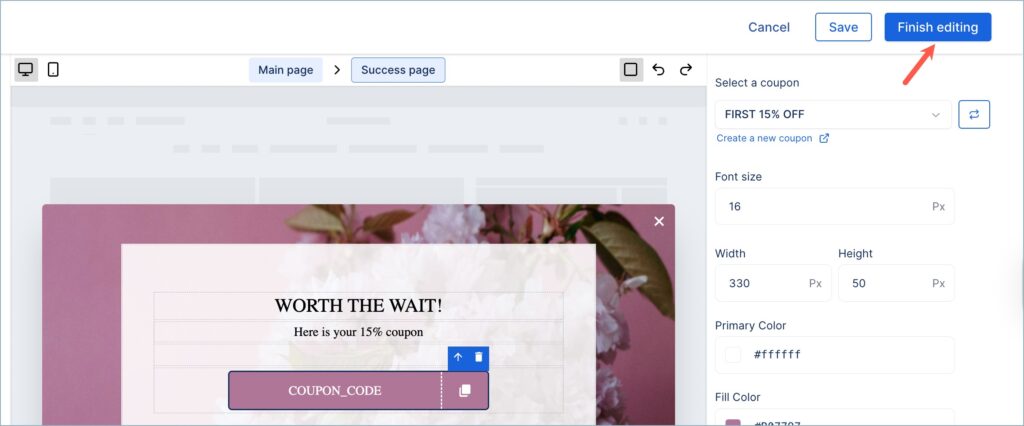
C. Success Page
This is where you present the offer:
- Add a bold confirmation: “Here is your 20% off.”
- Include a Coupon block where they can easily copy the code.
- From the right panel, select an existing coupon or create a new one right from the template editor.

To know more about popup customization, check out this article: Customize Web Campaign Pop-Ups for WooCommerce Stores.
Step 7: Save and Publish the Campaign
- Click Finish editing to save the design.
- Give your campaign a relevant name.
- Hit Publish to make it live.
Step 8: Preview Your Campaign in Action
Open your store in an incognito window, add items to your cart, and attempt to leave. The pop-up should appear as configured, only when the cart value condition and exit intent are triggered.